1. Navigate to Inventory > Manage Locations and click on Edit Custom Inventory Sort. You do not need to select a location on this screen.
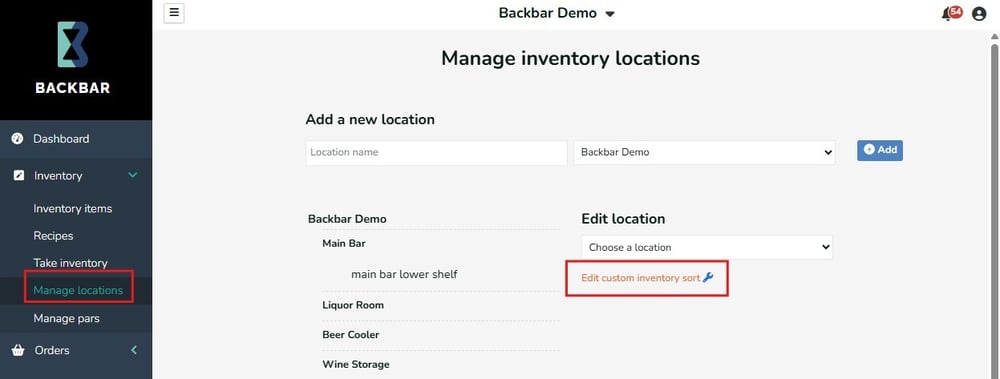
2. This opens the Custom Sort inventory list builder. Select the location you wish to set the items and custom sequence for, by clicking the location name at the top of the page. Select the location from the dropdown.
3. The left column is your full items list, the right column is your custom sort list. Drag and Drop items from the left/full list onto the custom list column on the right. Both the items, and the sequence of them, help to speed up the process by matching the app-to-shelf order when taking inventory. If you drop an item out of sequence drag and drop it up and down the list to re-sort.
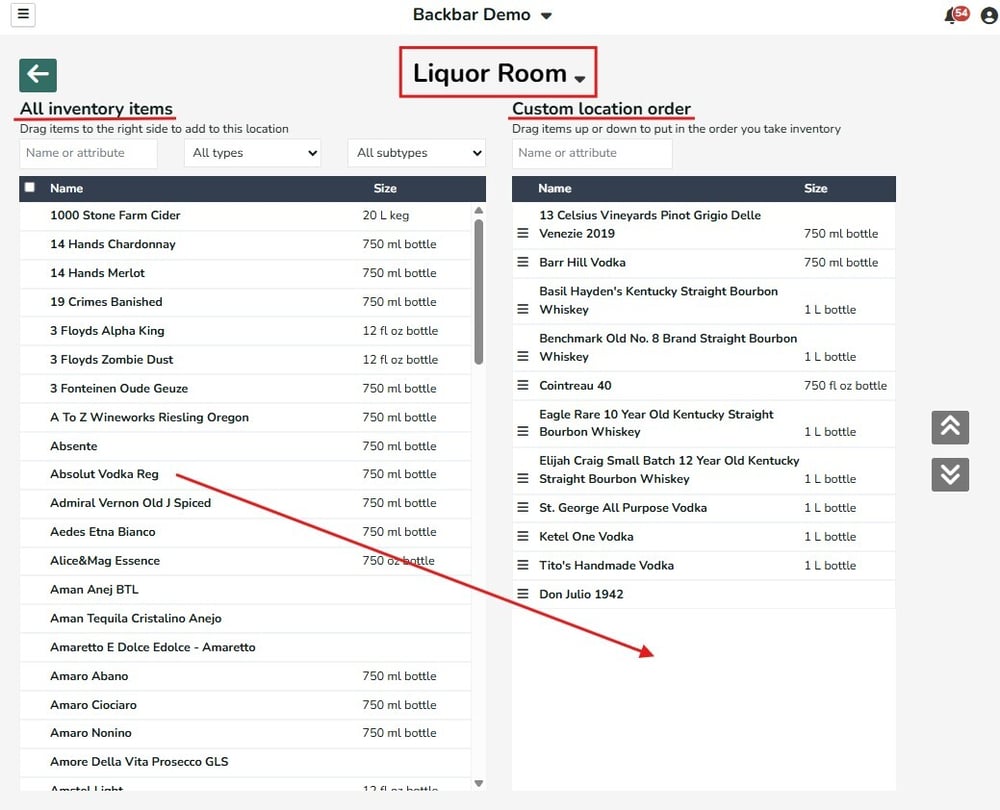
You can move multiple items at once by clicking the select all check box or by clicking the individual items and then drag and drop them together.
You can only have an item in the custom sort list a single time. During inventory all your remaining items are available to you if you click Name at the top of the screen, to see your full list of items, then click Custom to return to the ordered sort. You can also edit the custom sort within the inventory session on the web app, by clicking the wrench icon next to the Custom sort button at the top of the items list.
From the mobile app tap the "Custom" blue oval at the top of the list to exit out of the custom sort and return to an A-Z list. Reenable the custom sort by tapping the funnel icon next to the search bar and selecting Custom Sort.