To use the price calculator for any item in your inventory, you must first enter in its cost and size information under the Inventory Information tab at the top of the item details page.
If you are on the Basic Plan, Backbar sets the serving volume field to a 1fl oz or 25ml serving size. Users on the Essential or Professional Plans have the ability to change the serving size on each item. Additionally subscribers have the price calculator available within each recipe builder screen as well. Basic plan accounts do not have access to the recipe page price calculator feature.
Enter an amount for either Pour cost, Menu price, or Profit and Backbar will calculate the amounts automatically for the other two fields. For example, if you enter a menu price for an item, Backbar will automatically calculate its pour cost and profit. Not sure what a good Pour Cost is for you establishment? Feel free to read through our helpful liquor cost guide here!
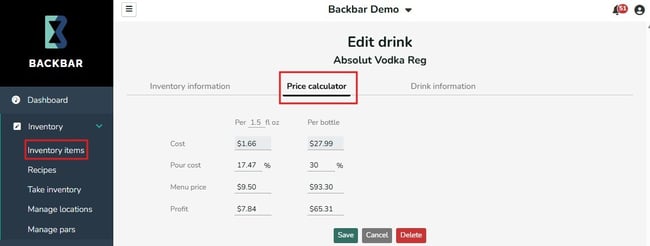
As soon as you begin entering in a Pour Cost %, Price or Profit field, all the other fields update in real time. To switch the tool between displaying ml and fl oz, change the account default units by going to:
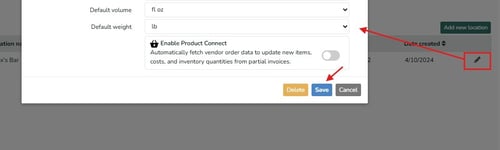
User menu in the top right > Manage Organization > click the Pencil icon in the bottom Locations table. Update the default weight/volume listings as desired and Save.
This price calculator is designed to assist with menu and drink pricing and keep pour costs aligned. This information is not used in POS Sales tracking and is only meant as a pricing tool. Premium plan users can view all calculator settings on a convenient report view:
Reports > Inventory reports > Pricing, pour cost & profit report. Note you report is read-only and does not include recipe information.
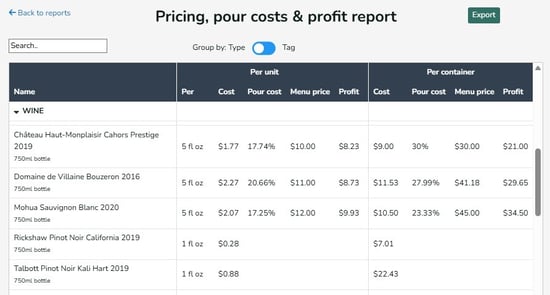
If there are blank fields for items on this report, there is either missing bottle/cost info on the Inventory Info page or the Price Calculator page is missing entry, or both.