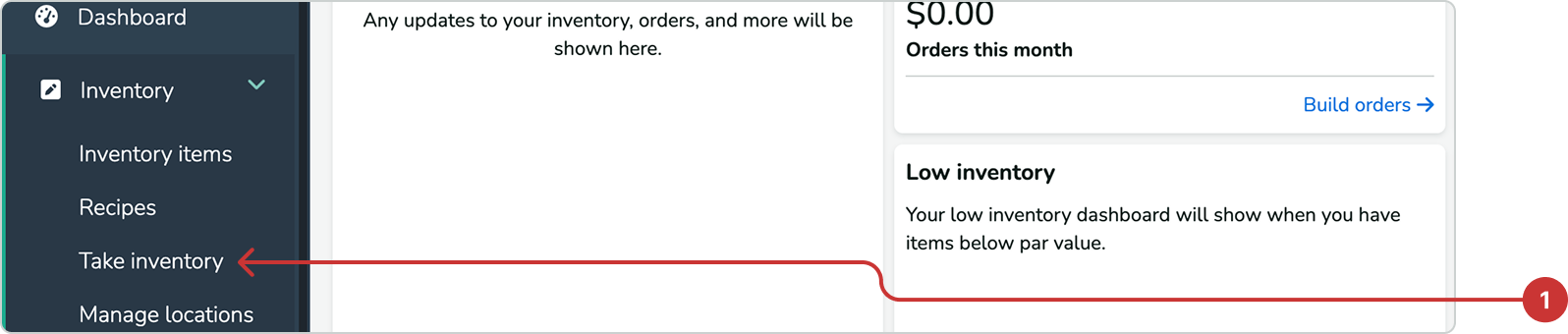
1. In the left navigation panel, go to Inventory, and select Take inventory from the drop-down menu.
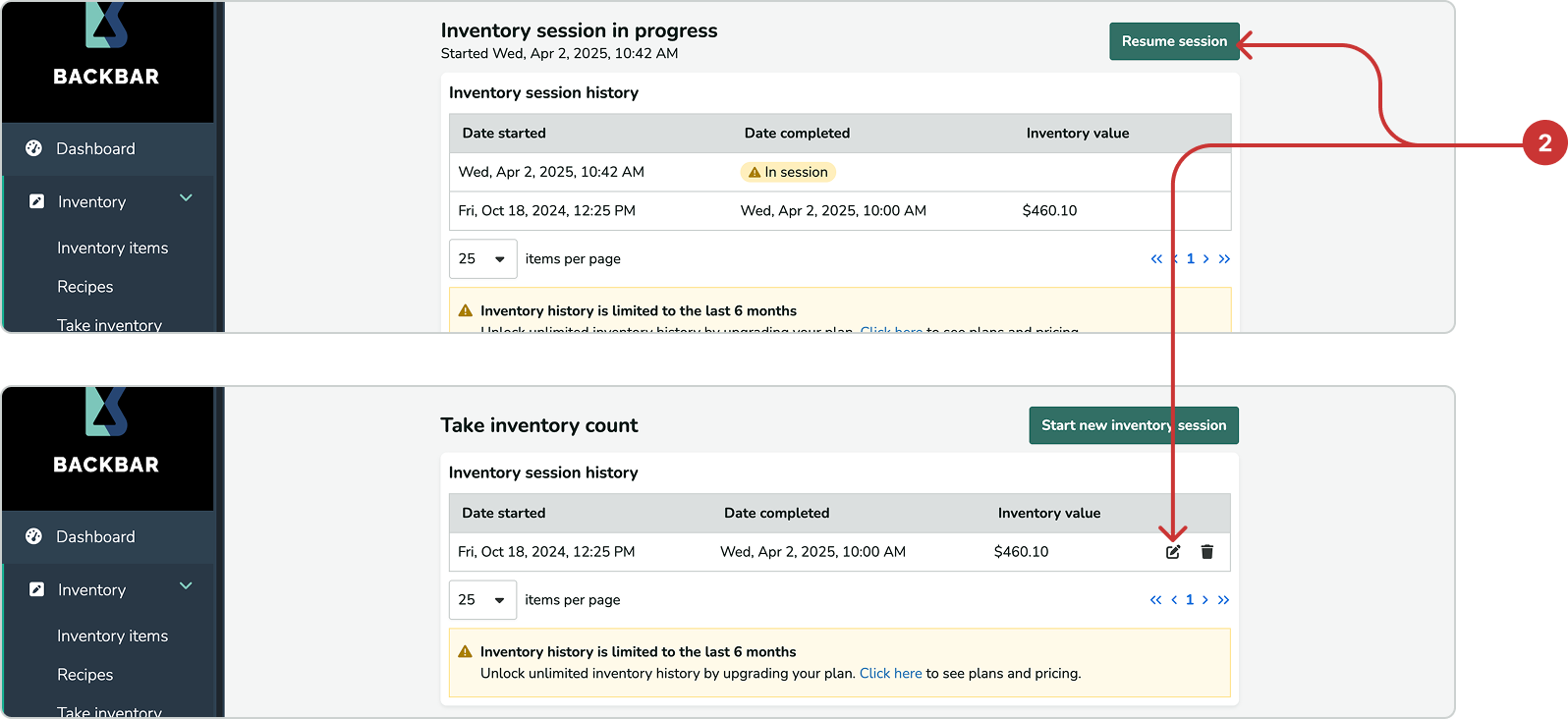
2. If you’re still in the middle of the session, click the Resume session button. If you’ve already ended the session, click the pencil icon in the inventory session history table to reopen the session.
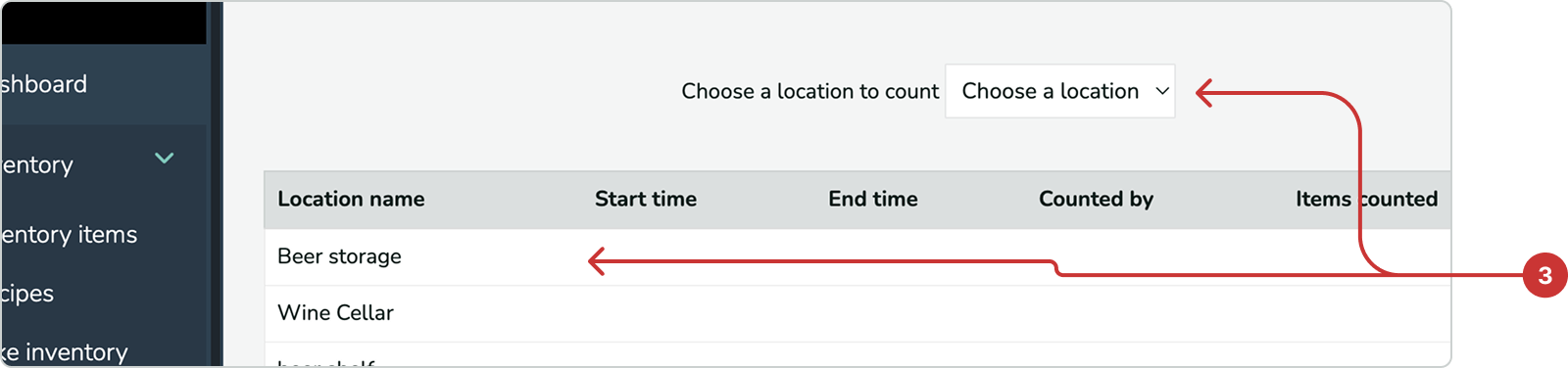
3. After reopening or resuming the session, find and click on the location where the item(s) you need to correct are located.
4. On this page, find the item that needs correction and update its count as necessary.
5. After updating the count, click the Finish location button. Your changes will be automatically saved. If you have reopened a session, be sure to backdate the closure timestamp correctly to the original date. The mobile app is the same process, read how to return to sessions for information on how to reopen in the mobile app.